SarcGraphTools - Visualization
All demos are availble on GitHub at https://github.com/Sarc-Graph/sarcgraph/tree/main/tutorials.
To run demos with jupyter notebook check Installation Guide.
SarcGraph includes the tools for visualization of recovered sarcomere characteristics.
In this notebook we provide a tutorial on how to use the SarcGraph package using demos and examples. The focus is on the SarcGraphTools.Visualization class in the sg_tools module.
Initialization
Run SarcGraphTools - Analysis Tutorial or t3-analysis.ipynb Before running this notebook. This will generate the following files in the directory specified by output_dir in the tutorial file:
raw_frames.npycontours.npysarcomeres_gpr.csvrecovered_F.npyrecovered_J.npyrecovered_OOP.npyrecovered_OOP_vector.npyrecovered_metrics.jsonspatial-graph.pklspatial-graph-pos.pkltime_series_params.csv
Create an instance of the sg_tools.SarcGraphTools class and set input_dir to the same directory that contains the above files:
[1]:
from sarcgraph.sg_tools import SarcGraphTools

# Increase the quality to get better looking graphs
sg_tools = SarcGraphTools(input_dir='../tutorial-results', quality=50)
Visualization of Recovered Information
Here is a list of available functions in the SarcGraphTools.Visualization class:
zdiscs_and_sarcs(): Visualizes detected z-discs and sarcomeres in one framecontraction(): Visualizes all detected sarcomeres in every frame saved as a gif filenormalized_sarcs_length(): Plots normalized length of all sarcomeres versus frame numberOOP(): Plots the recovered Orientational Order ParameterF(): Plots the recovered deformation gradientJ(): Plots the recovered deformation gradient determinantF_eigenval_animation(): Visualizes the eigenvalues of U over all framestimeseries_params(): Visualizes timeseries parametersdendrogram(): Clusters timeseries and plots as a dendrogram of clustersspatial_graph(): Visualizes the spatial graphtracked_vs_untracked(): Visualizes some metrics to compare sarcomere detection with and without tracking
Note
Check the reference api for SarcGraphTools
Warning: Some of the functions may take a few minutes to run depending on the number of frames and sarcomeres.
Now, the functions listed above can be executed:
[2]:
sg_tools.visualization.zdiscs_and_sarcs()
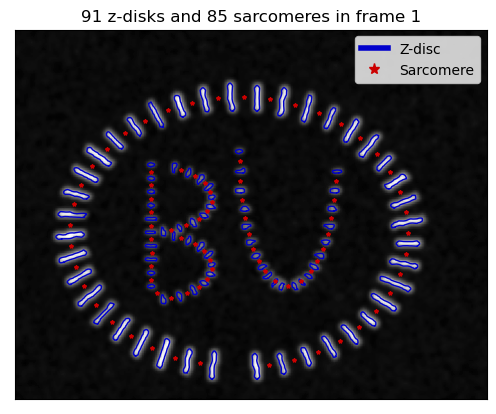
The figure will be saved as zdiscs-sarcs-frame-{frame_number}.png.
Note
For any png image an .eps file will also be saved if sg_tools.include_eps=True.
[3]:
sg_tools.visualization.contraction()
GIF saved as '../tutorial-results/contract_anim.gif'!
To Visualize the GIF saved in the previous step, run the following:
[4]:
import imageio
from IPython.display import display, Image

def read_gif_frames(file_path):
    with imageio.get_reader(file_path, format='GIF') as reader:
        frames = [frame for frame in reader]
    return frames

def display_gif_frames(frames):
    gif_bytes = imageio.mimwrite(imageio.RETURN_BYTES, frames, format='GIF')
    display(Image(data=gif_bytes))

# Read the frames from the existing GIF file
gif_path = '../tutorial-results/contract_anim.gif'
gif_frames = read_gif_frames(gif_path)

# Display the GIF using IPython.display
display_gif_frames(gif_frames)
<IPython.core.display.Image object>
[5]:
sg_tools.visualization.normalized_sarcs_length()

The figure will be saved as normalized_sarcomeres_length.png.
[6]:
sg_tools.visualization.OOP()
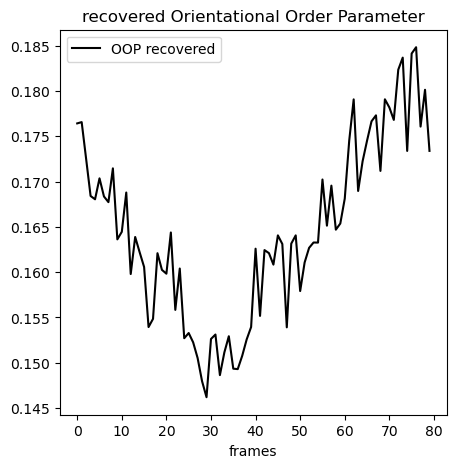
The figure will be saved as recovered_OOP.png.
[7]:
sg_tools.visualization.F()

The figure will be saved as recovered_F.png.
[8]:
sg_tools.visualization.J()
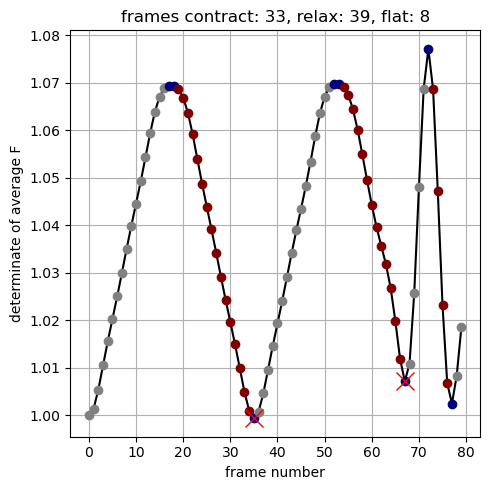
The figure will be saved as recovered_J.png.
[9]:
sg_tools.visualization.F_eigenval_animation()
To visualize the GIF in jupyter notebook run the following:
[10]:
import imageio
from IPython.display import display, Image

def read_gif_frames(file_path):
    with imageio.get_reader(file_path, format='GIF') as reader:
        frames = [frame for frame in reader]
    return frames

def display_gif_frames(frames):
    gif_bytes = imageio.mimwrite(imageio.RETURN_BYTES, frames, format='GIF')
    display(Image(data=gif_bytes))

# Read the frames from the existing GIF file
gif_path = '../tutorial-results/F_anim.gif'
gif_frames = read_gif_frames(gif_path)

# Display the GIF using IPython.display
display_gif_frames(gif_frames)
<IPython.core.display.Image object>
The animation will be saved as F_anim.gif.
[11]:
sg_tools.visualization.timeseries_params()

The figure will be saved as histogram_time_constants.png.
[12]:
sg_tools.visualization.dendrogram(dist_func="euclidean")
# you can switch to dist_func="dtw"

The figure will be saved as dendrogram_euclidean.pdf.
[13]:
sg_tools.visualization.spatial_graph()

The figure will be saved as spatial-graph.png.
Note
tracked_vs_untracked() needs access to the original video/image file file_path.
[ ]:
sg_tools.visualization.tracked_vs_untracked('../samples/sample_1.avi', start_frame=10, stop_frame=50)
The figures will be saved as length-comparison.png, width-comparison.png, and angle-comparison.png.